macOS Permissions Guide
To capture system audio and microphone input in real-time, DuRT requires specific macOS system permissions.
Required Permissions
| Permission | Required For | System Setting Location |
|---|---|---|
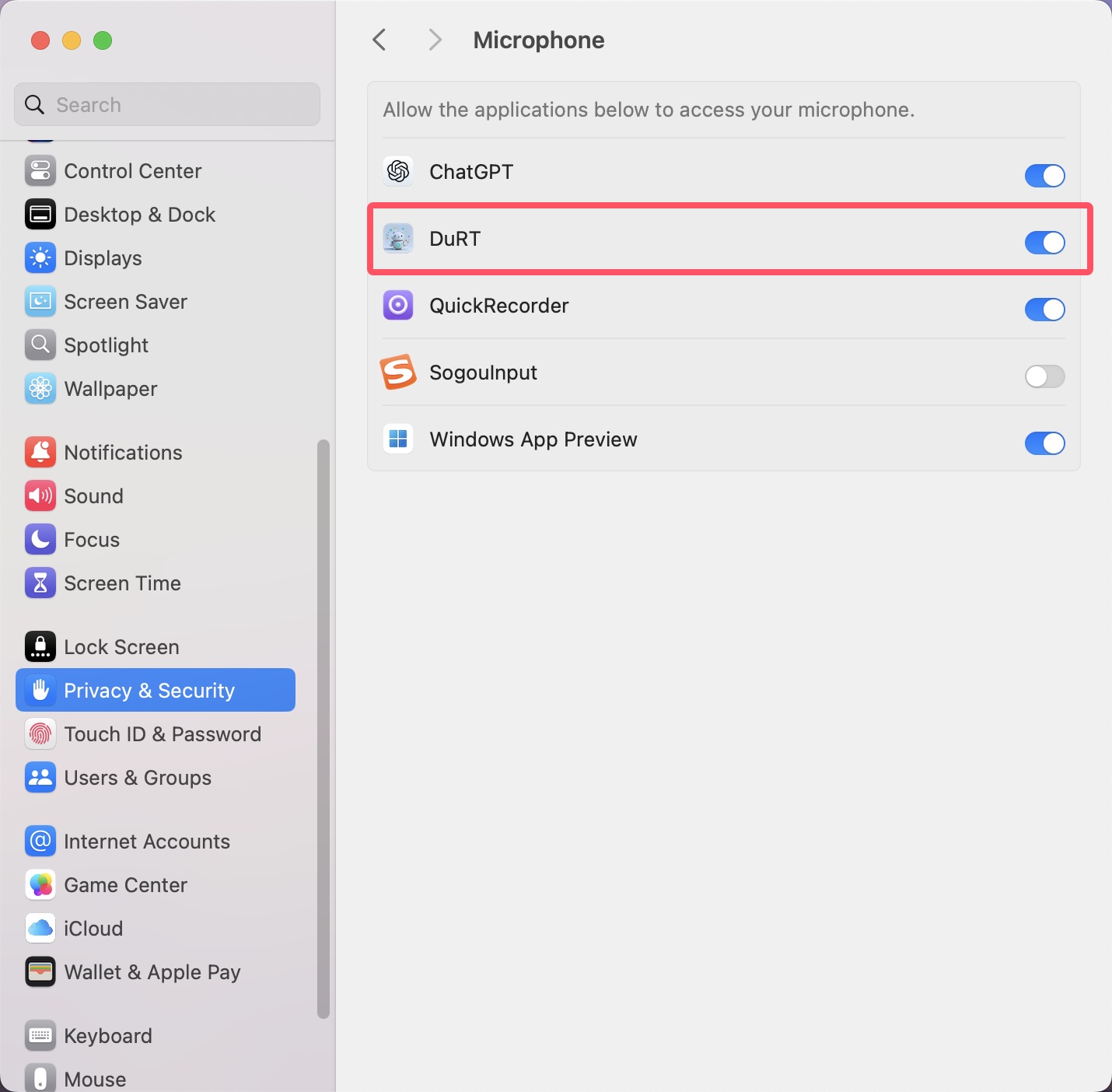
| Microphone | Capturing your voice during meetings or live speech | System Settings ➔ Privacy & Security ➔ Microphone |
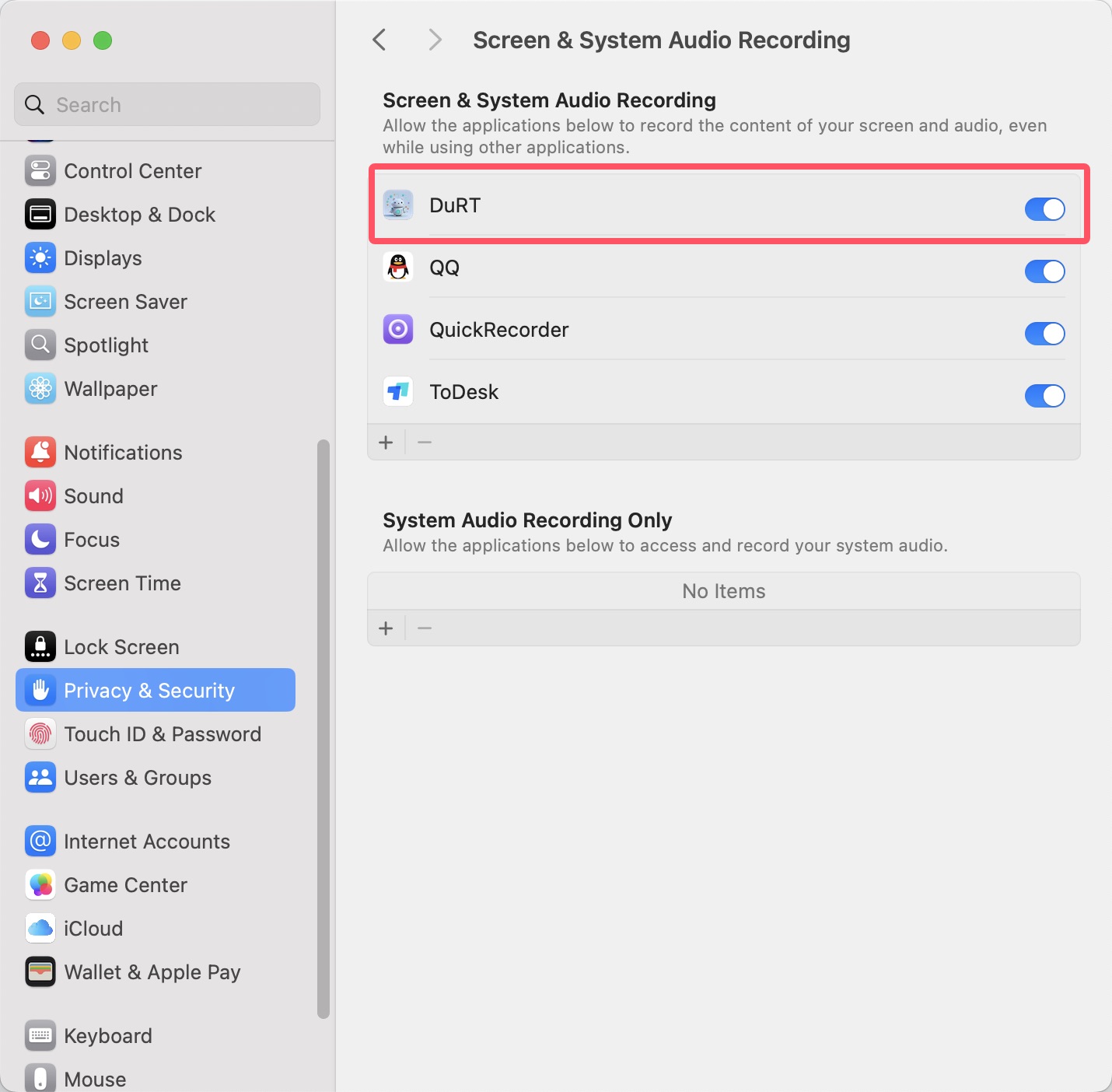
| Screen & System Audio Recording | Capturing internal audio from browsers, Zoom, YouTube, etc. | System Settings ➔ Privacy & Security ➔ Screen & System Audio Recording |
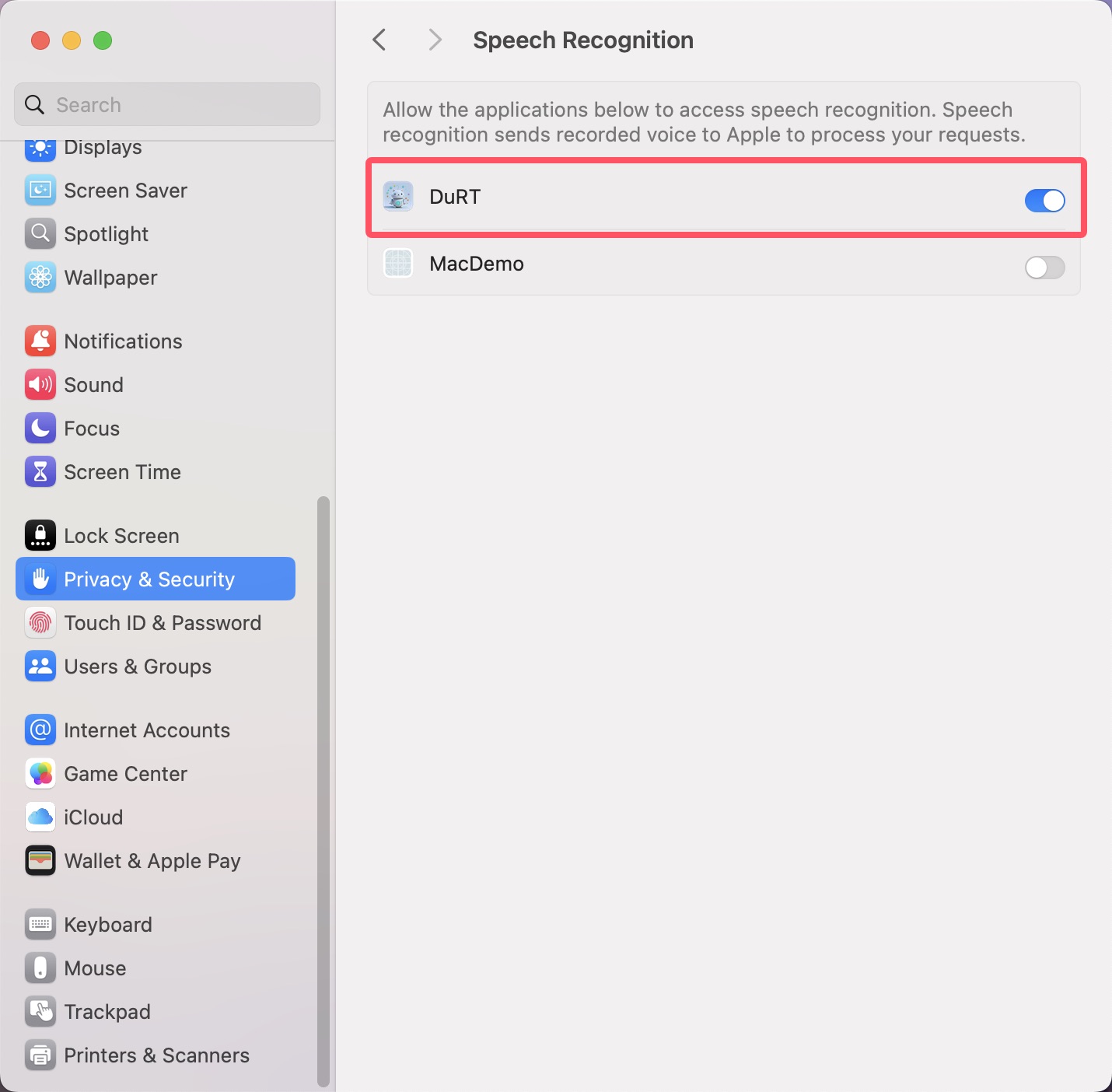
| Speech Recognition | Using Apple's on-device speech recognition framework | System Settings ➔ Privacy & Security ➔ Speech Recognition |
Step-by-Step Authorization
1. Screen & System Audio Recording (ScreenCaptureKit)
DuRT uses Apple's official ScreenCaptureKit framework to capture crystal-clear system audio without installing third-party kernel drivers or virtual soundcards.
- When you first launch Live Caption in DuRT, macOS will prompt a system authorization dialog.
- Click Open System Settings.
- Toggle the switch next to DuRT to
On. - If prompted, restart DuRT to apply the permission.
2. Microphone Permission
When using external or built-in microphone audio sources:
- macOS will request permission to access the microphone.
- Click OK to allow.
3. Speech Recognition Permission
If you choose Apple Speech Recognition as your engine:
- Click OK when macOS asks for Speech Recognition authorization.
Troubleshooting Permission Issues
If DuRT shows a permission warning even after enabling:
- Open
System Settings➔Privacy & Security. - Select the corresponding category (e.g.,
Screen & System Audio Recording). - Turn DuRT
Offand backOn. - Completely quit DuRT (
⌘ + Q) and relaunch it.